Approve (or deny) an FSD contract approval request
Tip Click the link in the notification email to access the task approval.
-
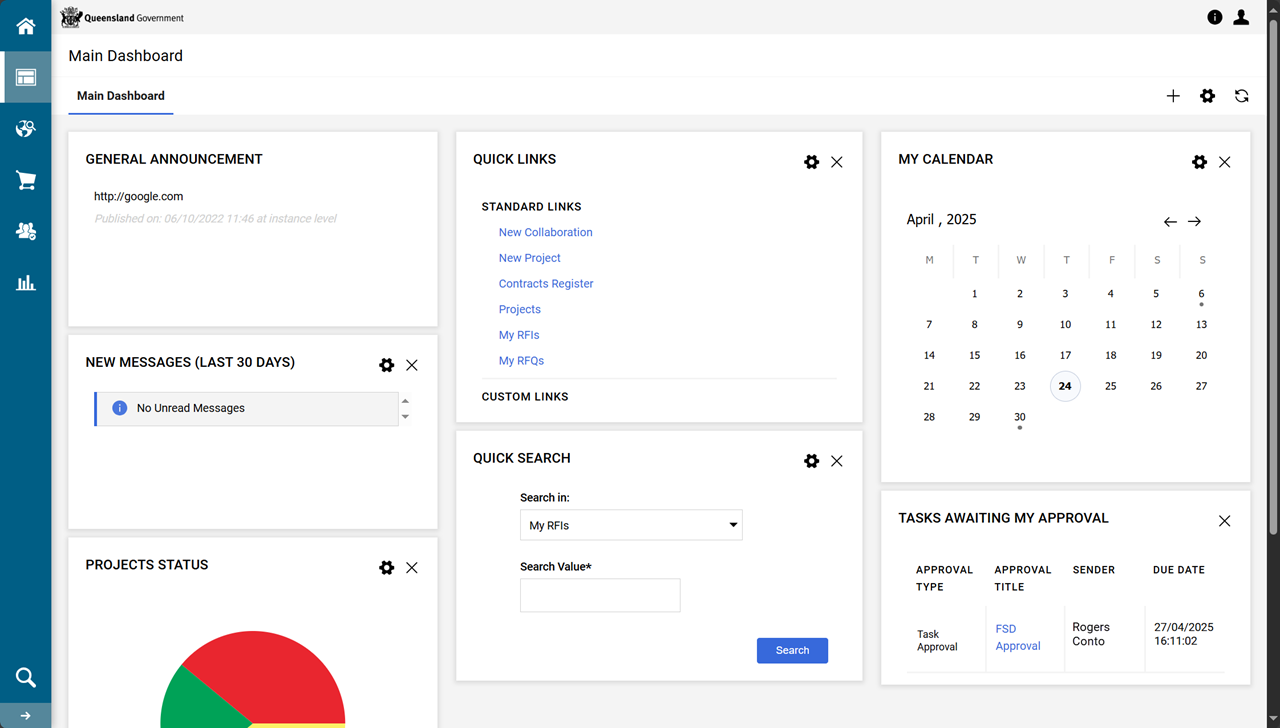
From the P2i Main Dashboard, in the TASK AWAITING MY APPROVAL portlet, click the approval request title in the APPROVAL TITLE column.
-
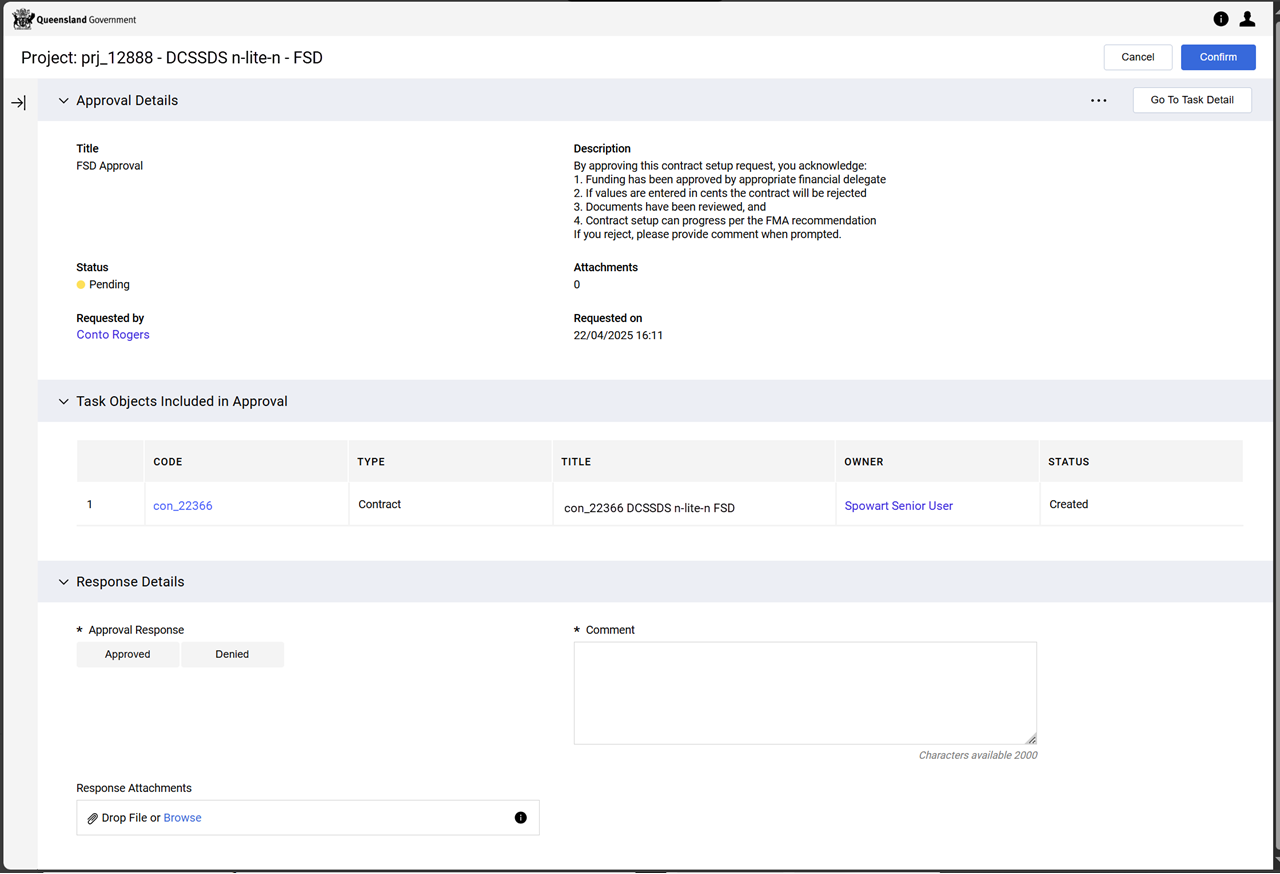
Review the approval request to make a decision.
-
If there is a commentary (collaboration) in the Task Objects Included in Approval, open and review.
-
If there are Attachments, click the link and review.
-
 Decision outcome - Deny an Approval Request
In the Response Details section:
-
Click Denied for an Approval Response.
-
Enter a Comment specifying the reason for denying the approval request.
Tip To add Response Attachments to the approval response, click Browse to attach file or drag and drop the file.
-
Click Confirm.
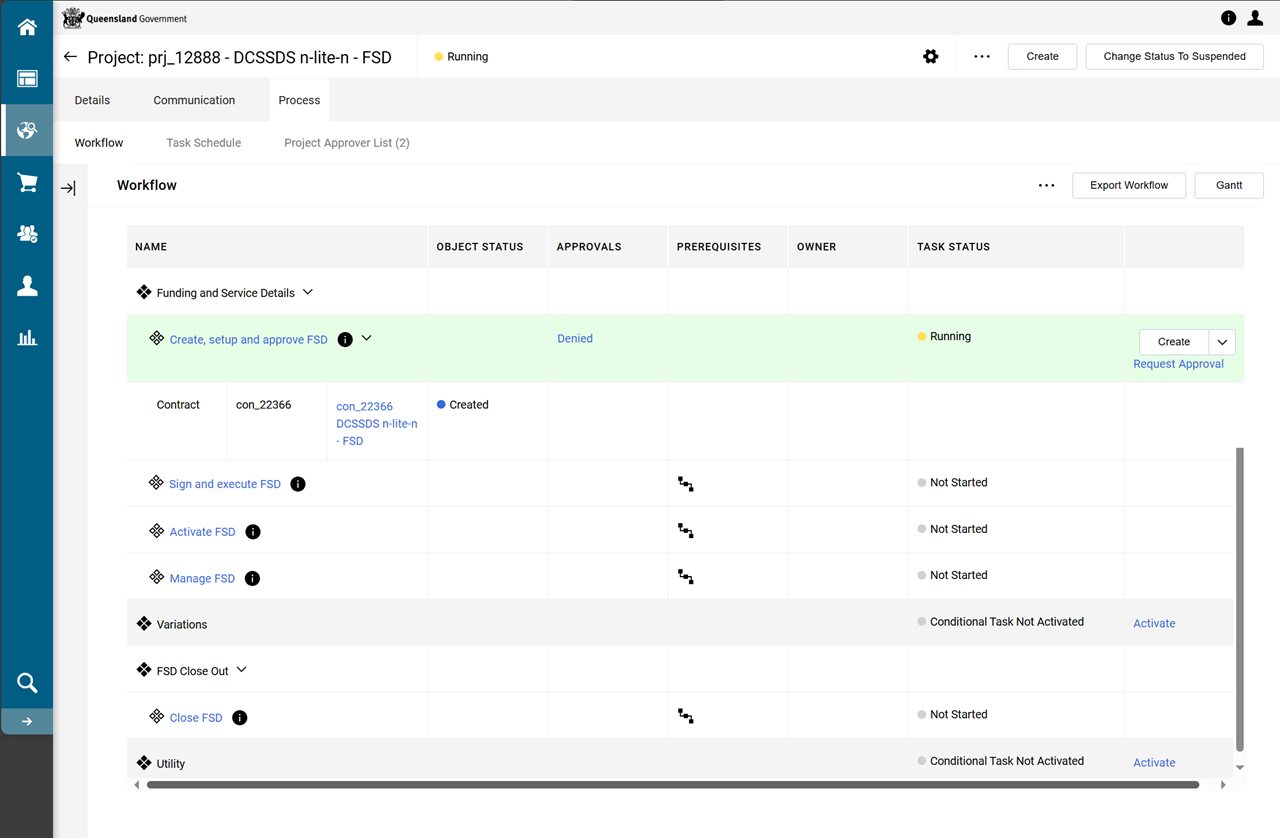
Note An email notification is sent to appropriate P2i users informing the approval request has been denied. (refer to project > Communication tab > Alerts > Sent Alerts)
Decision outcome - Approve an Approval Request
In the Response Details section:
-
Click Approved for an Approval Response.
-
Enter an optional Comment.
Tip To add Response Attachments to the approval response, click Browse to attach file or drag and drop the file.
-
Click Confirm.
The contract is automatically promoted from the Create, setup and approve FSD workflow task to the Sign and execute FSD workflow task.
The Create, setup and approve FSD workflow's TASK STATUS updates to Completed.
The Sign and execute FSD workflow's TASK STATUS updates to Running.
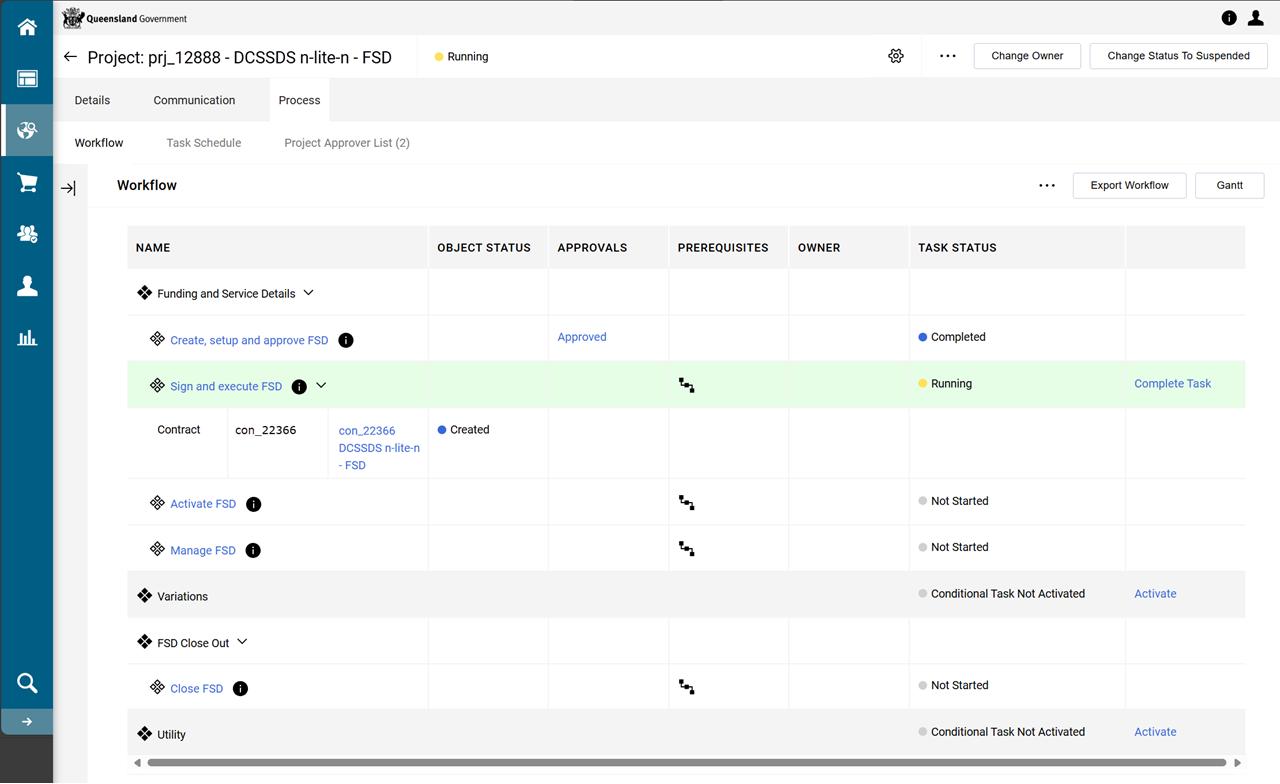
Note An email notification is sent to appropriate P2i users informing the approval request has been approved. (refer to project > Communication tab > Alerts > Sent Alerts)